 Getting Started
 Advanced Settings
 For Developers
 Frequently Asked Questions
 Compatible Plugin & Themes
 How
HowHave you ever thought of setting up the checkout field based on your preference? Setting up the checkout field centred on your terms makes it more dynamic and flexible.
Most often, we prefer a minimal approach when displaying WooCommerce’s predefined checkout fields. In particular, the billing addresses may not be displayed in the checkout option of the WooCommerce store. Similarly, when specific shipping options are in the cart, you might occasionally want to hide that shipping option from your consumers.
As a vendor, for flat rate shipping, it is essential to get the proper address of the customer during delivery. However, when the customer prefers a local pick-up option, gathering the customer’s address for delivery is not mandatory.
There are scenarios where you may require specific fields to be masked in the checkout page selected by the user’s preference. Unfortunately, Woocommerce does not support the conditional rule on the checkout page. So we have come up with a solution where you can utilise our plugin, Checkout Field Editor for WooCommerce, and deal with the situation. The plugin Shows/Hides fields based on Shipping Methods on the Checkout Page.
Let us look at the various steps that help display the Shipping methods on the checkout page.
- Navigate to Dashboard > Checkout Form
- Proceed to the Advanced Settings tab.
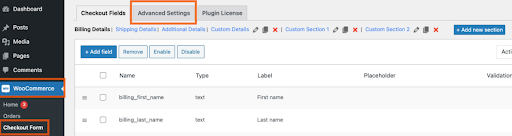
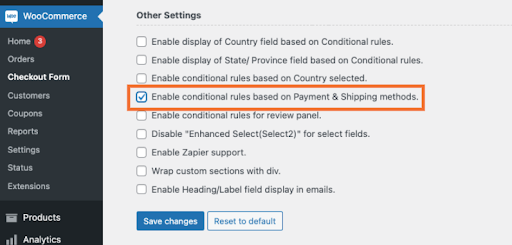
- Move to the Other Settings section at the bottom.
- Tick the box Enable conditional rules based on Payment & Shipping methods.
- Save changes
- Proceed to find the value of the shipping method.Once the conditional criteria have been specified in the Advanced settings, the value for the shipping method must be selected.Follow the below steps to find the value of the shipping method.
To find the value of the Shipping Method,
- Go to the Shop page > Add to Cart > Checkout.
- Right-click on Shipping on the Checkout Page, just below Your Order.
- Right-click on Shipping on the Checkout Page, just below Your Order.
- Click Inspect.
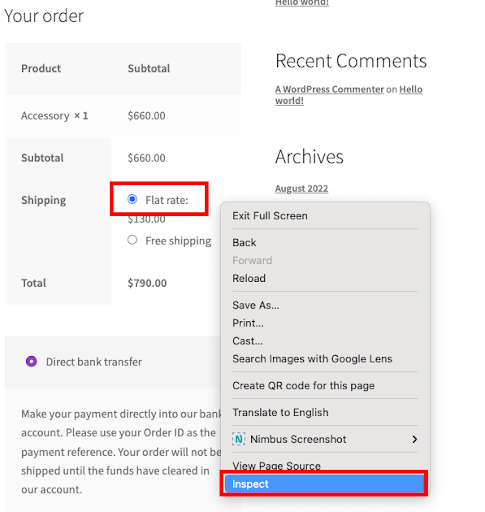
- You will be directed to an additional window, Element.
- The shipping method value in the present instance is flat_rate:5, as displayed below.

- Provide the shipping method value to the conditional rule based on the shipping method. Use the value you just obtained for the shipping method to decide whether to show or hide the fields on the checkout page.
- Direct to WooCommerce > Checkout Form > Checkout Fields
- Click the Edit button, if the fields are already created. (Click Add Field if new fields are to be added).
- Proceed to the Display Rules tab.
- Select Shipping Method from the drop-down list.
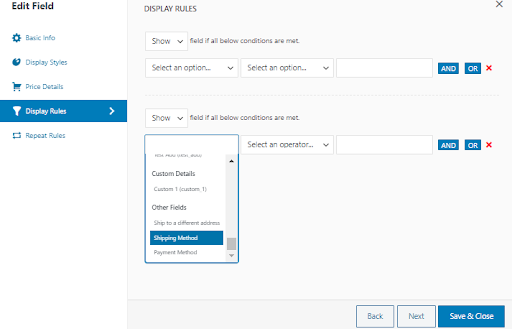
- Select the operator as “value equals to”.
- In the box next to the operator, provide the shipping method value as flat_rate:5.
- Save & Close
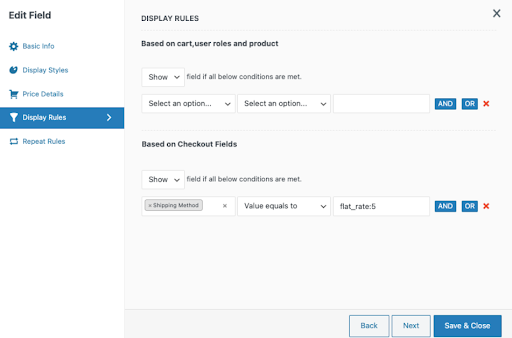
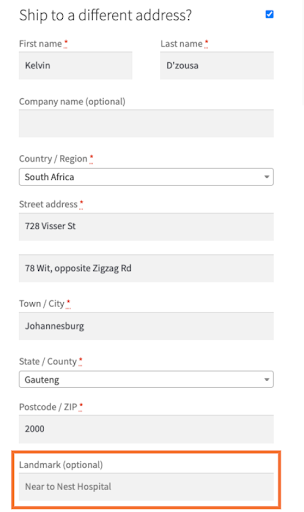
The created field for showing the shipping method is Landmark. Therefore, the checkout page will display as shown below.
Final Thoughts
In this article, we have discussed how you can show or hide checkout fields according to your requirement based on the Shipping Methods. You can follow the steps to find out the payment method value first. After that, you can provide the value in displaying the checkout fields on the checkout page. After reading this article, we hope you can show or hide checkout fields on your store without difficulties.