 Getting Started
 Advanced Settings
 For Developers
 Frequently Asked Questions
 Compatible Plugin & Themes
 How
HowWe consider WooCommerce a dynamic and flexible plugin for WordPress. However, it is bounded to a specific limit, and customizing the checkout page is among them. Have you ever considered repeating the custom fields or custom sections for the WooCommerce store? For these instances, we can apply Repeat Rules to meet these needs.
In this article, we showcase how to add repeat rules to the checkout form so that it becomes customizable. To set the repeat rules, you can use the “Checkout Field Editor for WooCommerce” plugin by “ThemeHigh”.
What are Repeat Rules?
Repeat Rules are used when the user wants to repeat a particular field or section. For example, you can set up a particular field to be repeated for every quantity of the specific item in the cart.
For instance, consider the case of a train, where the seats have to be booked. The repeat rules can be used when tickets or seats are sold. Additionally, their personal information is to be entered per sold ticket. So in such cases, tickets can be repeated with varying information added. Similarly, you can repeat the field on the checkout page when the user needs to insert things such as multiple phone numbers and uploaders to upload various pdf, images, or other types of files.
How to add Repeat Rules on the Checkout Page?
Follow the below steps to set up and add the repeat rules on the checkout page.
- Navigate to WooCommerce > Checkout Form
- Click “Add Field”/”Edit Button”.
- A “pop-up” opens.
- Fill in the details.
- Proceed to the “Repeat Rules” tab.
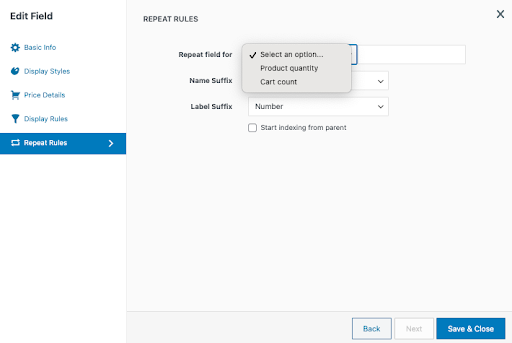
- From the drop-down, select the “Repeat field for” option.
- The custom section or custom fields are repeated in two options:
- Product quantity
- Cart count
- From the second drop-down “Select the products”.
- Provide the Name Suffix and Label Suffix as “Number” (Choose alphabets for alphabetical suffices).
- Select the checkbox “Start indexing from the parent”. When enabled, the repeated fields or sections get numbered from the start onward.
- Click “Save & Close”.
Repeat Rules based on Product Quantity
- Direct to WooCommerce > Checkout Form
- Click the “Add Field”/”Edit Button”.
- Proceed to the “Repeat Rules” tab.
- Select “Product Quantity” from the repeat field.
- From the drop-down “Select the products”.
- Select “Number” as Name Suffix and Label Suffix.
- Select the checkbox “Start indexing from the parent”.
- Click “Save & Close”.
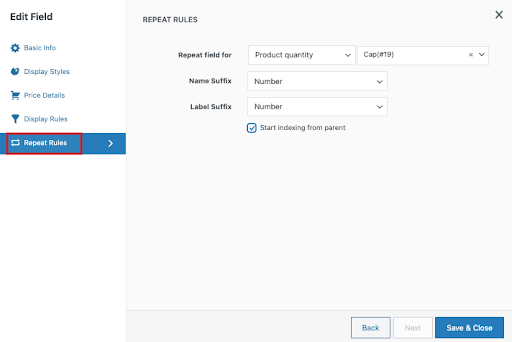
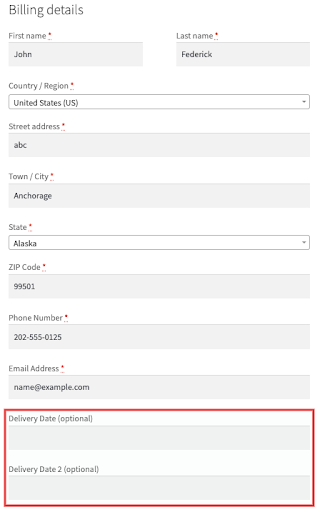
The checkout page will reflect the repeat rules for showing the product quantity set as shown below.
The product “Cap” is two in quantity in the cart. Therefore, the quantity of products in the cart will be repeated at checkout. The Delivery Date is the field that has to be repeated. Delivery Date and Delivery Date 2 are repeated fields. As the Start indexing from the parent is enabled, the first field automatically gets numbered and the second follows the first.
Repeat Rules based on Cart Count
- Direct to WooCommerce > Checkout Form
- Click the “Add Field”/”Edit Button”.
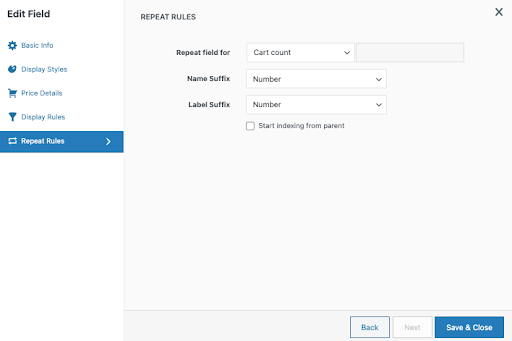
- Direct to the “Repeat Rules” tab.
- Select “Cart Count” from the repeat field.
- Select “Number” as Name Suffix and Label Suffix.
- Uncheck “Start indexing from the parent”
- Click “Save & Close”.
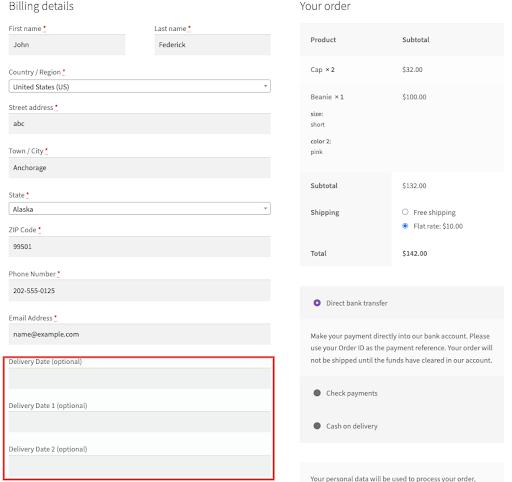
The checkout page will show the repeat rules based on the cart count as displayed below.
The below image shows that the cart contains two types of products “Cap” and “Beanie” with Cap two in quantity and Beanie one in quantity. Therefore, as the repeat rule is set for Cart Count, the fields get repeated for the number of cart counts. Therefore, the repeat rule gets added three times here. Further, as the Start indexing from the parent is unchecked, the field gets repeated as highlighted below.
Final Thoughts
Repeat Rules are highly recommended for users when they need to add additional details without clutter in the checkout form. Repeat rules help repeat the custom fields or sections according to specific requirements. This article has covered the Repeat Rules and how the same can be used to customize the checkout page. The Repeat Rules is set based on product quantity and cart count. We have set up the repeat rules on the checkout page using the plugin “Checkout Field Editor for WooCommerce” by “ThemeHigh”.