 Getting Started
 Advanced Settings
 For Developers
 Frequently Asked Questions
 Compatible Plugin & Themes
 How
HowThe purpose of the custom ‘Price Fields’ on the WooCommerce Checkout Page is that a shopper can customize a specific field to add or reduce an extra amount to/from their total/subtotal amount. For instance, it helps them to add donations, tips, service charges, discounts, offers, or other charitable favors.
To add custom price fields on WooCommerce, select’ Add Field’ in any desired section. A window named ‘New Field’ will pop up. There are options to add or customize fields. On the left-hand side of the window, you can see options like Basic Info, Display Styles, Price Details, Display Rules, and Repeat Rules.
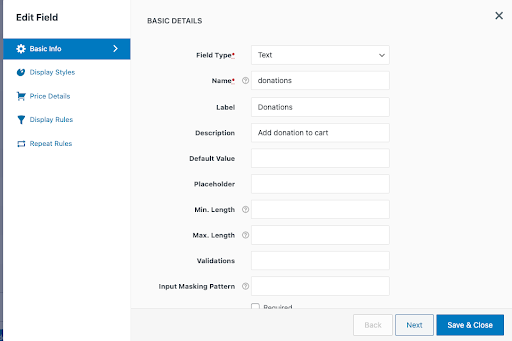
To create a new custom Price Field On the Checkout page, you must first enter ‘Basic Details’ mentioned above and then select ‘Price Details’.
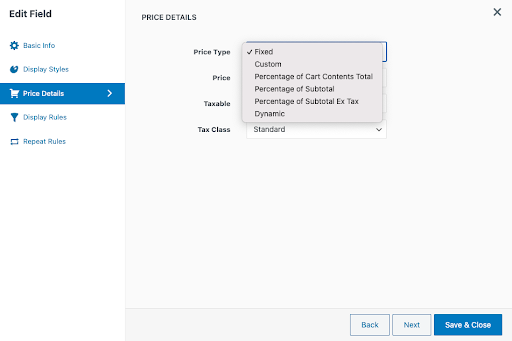
In the pop-up window, the first field will be Price Type. The Price Types are as follows,
- Fixed
- Custom
- Percentage of cart contents total
- Percentage of Subtotal
- Percentage of Subtotal ex tax
- Dynamic
Price Types
Fixed: A store owner can add a predefined amount to the total as a charge of service or as donations, tips, etc. When you choose the ‘Fixed price’ type, a desired fee is added in the following Price field. Tax details are added in the next two fields. When you save and view the reflection on the checkout page after shopping, an amount you entered will be added to the total amount.
Custom: To add a custom price field on WooCommerce Checkout Page from tabs on the left-hand side, select ‘Price Details’. Select ‘Custom’ from ‘Price Type’. Now you can include or exclude tax. The following field enables you to select Tax Class (Standard, reduced rate, or zero rate). Here the price field will be disabled (in this case, the amount is entered on the front end). The next two fields are for entering tax details. Save the entries. Now on the front end, you can choose the custom amount as mentioned earlier. Here customers receive the freedom to enter a desired amount.
Percentage of Cart Contents Total: To add or reduce an amount from the cart content total use the field type ‘Percentage of Cart Contents Total’. Here the percentage of total cart content is taken. A value can be added in the second field named Price. This field is handy when the store owner needs to include a discount percentage depending on the cart content total. To reduce an amount, the value entering the ‘price’ field should be negative, for example, -10, -50, etc. Tax details can be left default or changed accordingly. Save the entries. Now you can see the changes on the checkout page.
Percentage of Subtotal: While adding the Price Type ‘Percentage of subtotal’, you can add or reduce an amount from the subtotal. The required value can be added in the field named Price. This field is particularly useful when the store owner needs to include a discount percentage depending on the subtotal. To reduce an amount, the value entering the ‘price’ field should be negative, for example, -10, -50, etc. Tax details can be left default or changed accordingly. Click on Save and Close. Now you can see the changes on the checkout page.
Percentage of Subtotal Ex Tax: While adding the field type ‘Percentage of subtotal ex tax’, you can add or reduce an amount from the subtotal excluding tax. The tax mentioned here is enabled in the general settings. Here percentage is taken from the subtotal. The required value can be added in the field named Price. This field is especially useful when the store owner needs to include a discount percentage along with the subtotal excluding tax. To reduce an amount, the value entering the ‘price’ field should be negative, for example, -10, -50, etc. Tax details can be added in the following two fields. Click Save and Close. Now you can see the changes on the checkout page.
Dynamic: When choosing ‘Dynamic’ as the price type, you can add an extra amount or discount per unit. Enter the desired amount on the price field and the number of units on the next field. Tax details can be added in the following two areas. Click Save and Close. Now you can see the changes on the checkout page. On the site, at the checkout page, you can enter the quantity. Finally, you can see the customization and modifications you have done.
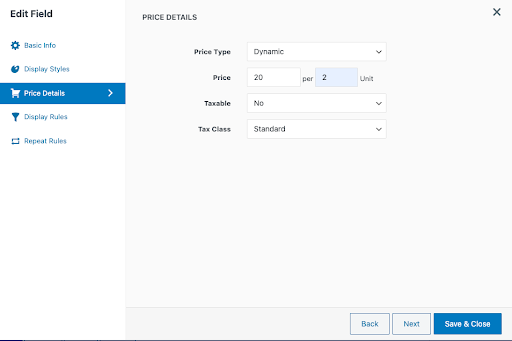
The probability of combinations using different ‘Field Types’ from ‘Basic Info’ and ‘Price type’ from the price details edit field is multiple. The most used ‘Field Types’ for customizing price fields are Text, Hidden, Number, Select, Radio, and Checkbox with all Price Types.
Let’s see a few mostly applied use cases,
1. Donations
To set a price field for Customer’s DONATIONS
Step 1. Navigate to the WooCommerce → Checkout Form → Checkout Fields page.
Step 2. Open the field form popup. Click on the Add Field in any desired section, for instance, Billing Details, Shipping details, Additional details, or any other customized section you add. Add field button is to open the popup form if you are setting the price for a new field. Click on the Edit Field button to open the popup form if you set the price for an existing field.
Step 2. To add a donation price field, you can choose Field Type, for example, Text, and Number. Enter details in the following fields also. Name is a mandatory field, whereas Label. Description, etc., are advised to enter.
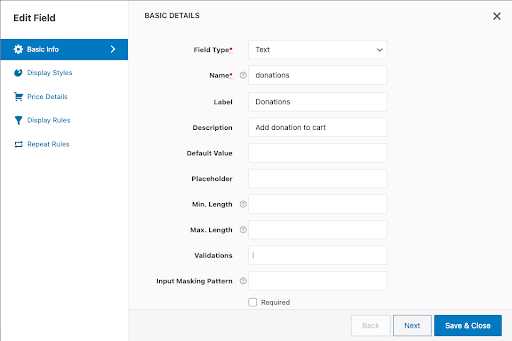
Step 3. The next step is to enter price details. Here you have to choose Custom in the Price Field. In the Custom Price Type, the price field below will be disabled as the customer does it on the site. Tax details can be added in the following fields.
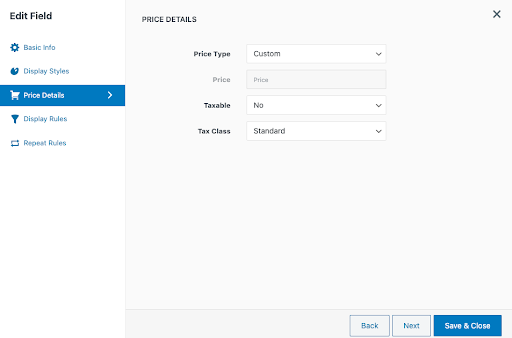
Final Step. Click on the Save and Close button to save the settings. You can see the changes on the checkout page. Customers can enter or choose the donations in the field created.
2. Discounts
To set a price field for DISCOUNTS
To set discount fields on the checkout page, you can use Price Type as Percentage of Cart Contents Total, Percentage of Subtotal, Percentage of Subtotal and Dynamic. In the following case, we utilize Percentage of Cart Contents Total as Price Field. The field on the checkout page just created is meant to inform about the value reduced from the total.
Step 1. Navigate to the WooCommerce → Checkout Form → Checkout Fields page.
Step 2. Open the field form popup. Click on the Add Field in any desired section, for instance, Billing Details, Shipping details, Additional details, or any other customized section you add. Add field button is to open the popup form if you are setting the price for a new field. Click the Edit Field button to open the popup form if you set the price for an existing field.
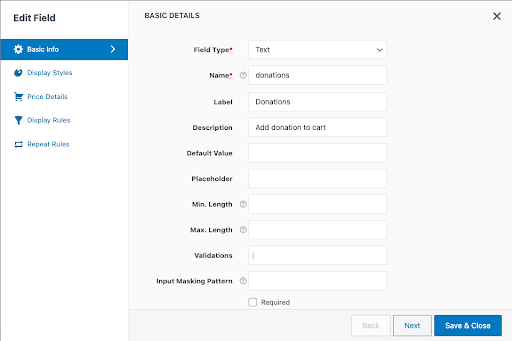
Step 3. To add a discount percentage price field, you can choose Field Type, for example, Text, Number, Text area and Checkbox. Enter details in the following fields also. Name is a mandatory field, whereas Label. Description, etc., are advised to enter.
Step 4. The next step is to enter price details. Here you have to choose Percentage of Cart Contents Total in the Price Field. In the below Price field you can enter the discount percentage value, for instance, -10, -50. Tax details can be added in the following fields.
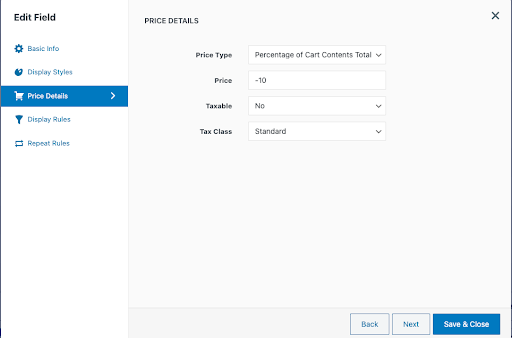
Final Step. Click on the Save and Close button to save the settings. You can see the changes on the checkout page. Store owner can name or briefly explain about the discount so that it displays on the order details.