
ThemeHigh
  • Plugins
  • Documentation
  • Support
  • Partners
  • Login
  • Getting Started
    • Overview...
    • Add/Edit Custom Fields
    • Set Display Rules
    • Set Repeat Rules
    • Price Fields & Types
    • User Meta Fields
    • Time Picker Settings
    • Why Your Checkout Fields Aren’...
    • Date Picker Settings
    • Display Custom Fields...
  • Advanced Settings
    • Include New Fields in Address Format?
    • Enable Address Autofill
    • Configure Locale Override Settings
    • Add Custom Fields to CSV Export
    • Display Custom Fields In PDF Invoices & Packing Slips
    • Zapier Support
    • Display Country & State Fields based on Conditional Rules
    • WPML Compatibility
    • Where do the Custom Fields get Saved or Displayed?
    • Backup & Import Settings
    • Enable Inline Validation...
    • WPML String Translations...
    • Custom Fields in WooCommerce Orders
    • Add a New Custom Validation Rule
    • Add a New Confirm Field Validator
    • Import/Export the Checkout Fields and Sections
  • For Developers
    • Hooks & References...
    • Display Rules: Use cases and mor...
    • Repeat Rules: More use cases and...
    • Based on Checkout Fields: Use ca...
    • Override HTML Content: Examples...
    • Compatibility with “WooCom...
  • Compatible Plugin & Themes
    • Plugins & Themes...
  • Frequently Asked Questions
    • Frequently Asked Questions...
  • How
    • How To Display Fields In Order D...
    • How To Customise The Shipping Se...
    • How To Add Custom Fields In The ...
    • How to Add Custom Price Fields o...
    • How To Add A New Section To The ...
    • How To Display Custom Fields In ...
    • How to Show/Hide Fields Based On...
    • How To Set Repeat Rules On The C...

Documentation/Checkout Field Editor for WooCommerce/How to Display Country & State Fields based on Conditional Rules?

How to Display Country & State Fields based on Conditional Rules?

Last updated on August 18, 2022

In order to display Country and State fields based on conditional rules, you must enable the checkboxes “Enable display of Country field based on Conditional rules” and “Enable display of State/ Province field based on Conditional rules” in the Advanced Settings tab → Other settings.
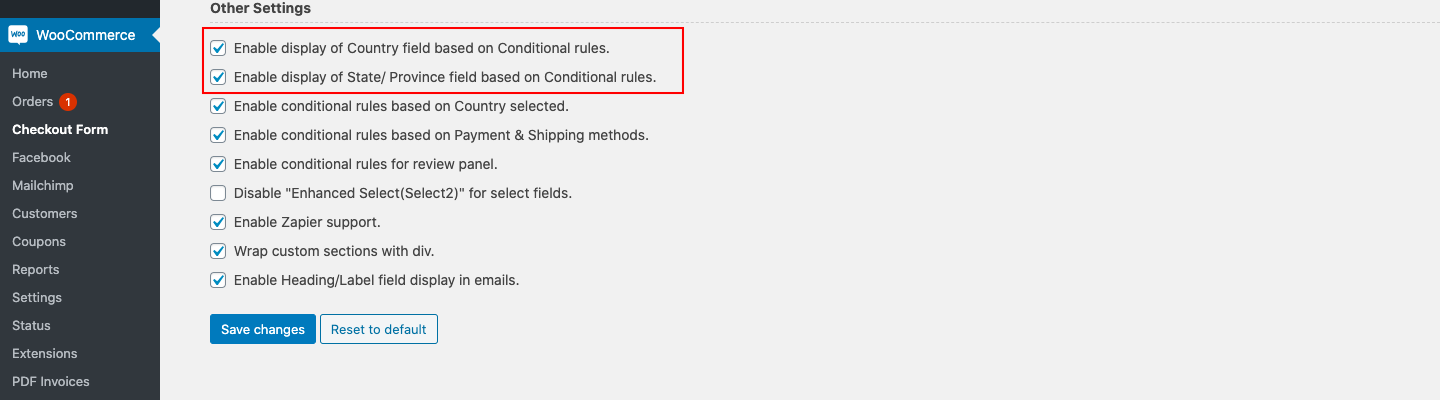
Other_settings.png

Disable “Enhanced Select(Select2)” for select fields

Select2 is a jQuery based replacement for select boxes. It supports searching, remote data sets, and infinite scrolling of results. By enabling this option the enhanced select features will be disabled for Select and Multi–select field types.

Note: You can also enable /disable this setting specific to the field type from the basic setting of the respective field – Select and Multi-select.


Get the plugin

On this page

  • Disable "Enhanced Select(Select2)" for select fields

What's new

  • Added a custom file upload button property for the File upload field type.
  • Alert on selecting display position of sections as before/after terms and conditions.
  • Added Woocommerce 6.8.2 compatibility.

Highlights

  • 24 custom field types with file upload.
  • Create additional sections.
  • Display sections and Fields Conditionally.
  • Display custom fields at 14 different positions.
  • Create confirm field validators.
  • Price fields with a set of price types.
  • Repeat fields and sections based on specific conditions.
  • WPML Compatibility.
  • Import & Export fields and sections.

This article posted in Advanced Settings, Checkout Field Editor for WooCommerce, Pro Documentation

Leave a Reply Cancel reply

Your email address will not be published. Required fields are marked *

ThemeHigh

We develop innovative WordPress plugins and themes for e-commerce and other WordPress websites.

Resources
  • Documentation
  • Support
  • Blog
  • Bestsellers
  • Affiliates
  • Partners
Policy Information
  • Terms & Conditions
  • Privacy Policy
  • Support Policy
  • Refunds Policy
  • Licenses
Security
Payment Options

© 2026 ThemeHigh. All rights reserved.

Terms and conditions, features, support, pricing, and service options subject to change without notice.