ThemeHigh
  • Plugins
  • Bundles
  • Resources
    Documentation Documentation Step-by-step guides to set up and help you understand our plugins with ease. Blog Blog Tips, insights, and ideas from the team to help you grow your e-commerce store.
  • Resources
    Documentation
    Documentation

    Step-by-step guides to set up and help you understand our plugins with ease.

    Blog
    Blog

    Tips, insights, and ideas from the team to help you grow your e-commerce store.

  • Support
  • Login
  • Getting Started
    • Plugin Installation
    • Overview
    • Date, Time & Related Field Settings
    • Import/Export Checkout Fields
    • Managing Checkout Fields
    • Managing Checkout Section
    • Set Display Rules
    • Set Repeat Rules
    • Price Fields & Types
    • User Meta Data & Order Meta Data
    • Display Custom Fields
  • Classic and Block Checkout Editor
    • Classic and Block Checkout Editor
    • Why Your Checkout Fields Aren’...
  • Block Checkout Field Editor
    • Block Checkout Field Editor
  • Advanced Settings
    • Custom Fields in Address Format
    • Enable Address Autofill
    • Configure Locale Override Settings
    • Add Custom Fields to CSV Export
    • Display Custom Fields In PDF Invoices & Packing Slips
    • Zapier Support
    • Country, State, Province based Conditions
    • WPML Compatibility
    • Backup & Import Settings
    • Enhanced Select (Select2) for Select Fields
    • Enable Wrap Custom Sections with Div
    • Enable Heading/Label Field
    • Enable Review Panel Conditions
    • Enable Inline Validation in Chec...
    • Enable Conditional Rules Based Payment & Shipping Methods
    • WPML String Translations...
    • Add a New Custom Validation Rule
    • Add a New Confirm Field Validator
  • For Developers
    • Hooks & References...
    • Display Rules: Use cases and mor...
    • Repeat Rules: More use cases and...
    • Based on Checkout Fields: Use ca...
    • Override HTML Content: Examples...
    • Compatibility with “WooCom...
  • Compatible Plugin & Themes
    • Plugins & Themes...
  • Frequently Asked Questions
    • Frequently Asked Questions...
  • How
    • How To Display Fields In Order D...
    • How To Customise The Shipping Se...
    • How To Add Custom Fields In The ...
    • How to Add Custom Price Fields o...
    • How To Add A New Section To The ...
    • How To Display Custom Fields In ...
    • How to Show/Hide Fields Based On...
    • How To Set Repeat Rules On The C...

Documentation/Checkout Field Editor for WooCommerce/How to Enable Address Autofill?

How to Enable Address Autofill?

Last updated on June 17, 2026

Address Autofill allows customers to quickly fill in their address during checkout using location-based suggestions powered by the Google Maps Platform.

As the user types, relevant address suggestions appear, and selecting one will automatically populate the corresponding fields such as street, city, state, and postcode.


Steps to Enable Address Autofill

You can enable Address Autofill from the WooCommerce Checkout Field Editor plugin settings.

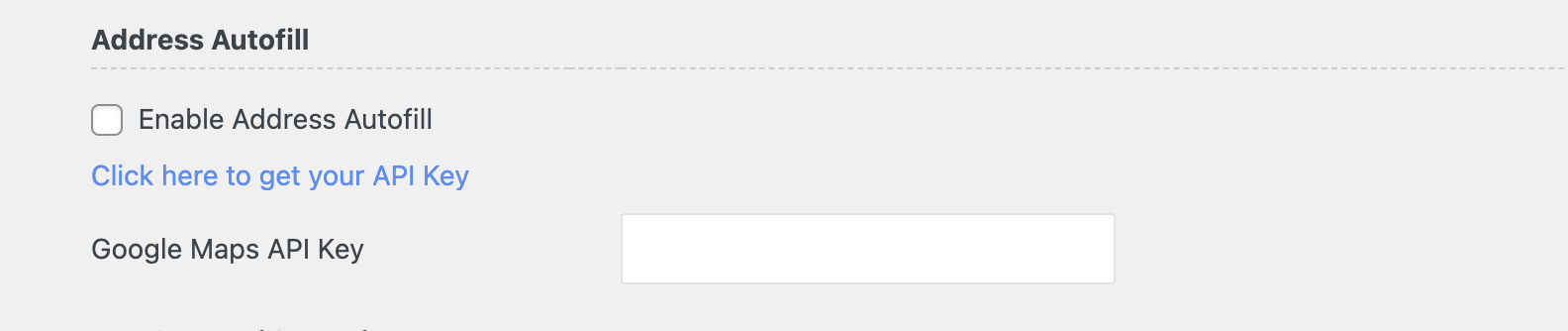
Navigate to WooCommerce → Checkout Form → Advanced Settings → Address Autofill

From here, you can configure the feature using the following options:

  • Enable Address Autofill
    Check this option to activate address suggestions in checkout fields.
  • Get your API Key
    Use the link given below to access the Google Cloud Console and generate your API
    key.
  • Google Maps API Key
    Enter the API key generated after enabling the required APIs (Maps JavaScript API and Places API).

Once the API key is added and saved, the Address Autofill feature will be active on your checkout page.

Note:
The address data is fetched directly from Google API autofill and mapped to the respective fields without any modification. You can check the address autofill in the given link below.

https://console.cloud.google.com/google/maps-apis/build/address-selection?project=maps-javascript-api-345207&supportedpurview=project

Get the plugin

On this page

  • Steps to Enable Address Autofill

What's new

  • Added a custom file upload button property for the File upload field type.
  • Alert on selecting display position of sections as before/after terms and conditions.
  • Added Woocommerce 6.8.2 compatibility.

Highlights

  • 24 custom field types with file upload.
  • Create additional sections.
  • Display sections and Fields Conditionally.
  • Display custom fields at 14 different positions.
  • Create confirm field validators.
  • Price fields with a set of price types.
  • Repeat fields and sections based on specific conditions.
  • WPML Compatibility.
  • Import & Export fields and sections.

This article posted in Advanced Settings, Checkout Field Editor for WooCommerce, Pro Documentation

Leave a Reply Cancel reply

Your email address will not be published. Required fields are marked *

ThemeHigh

Driven by a deep passion for crafting thoughtful solutions, we aim to make WooCommerce store customization an easy and enjoyable experience for our users.

© 2026 ThemeHigh. All rights reserved.

Terms and conditions, features, support, pricing, and service options subject to change without notice.