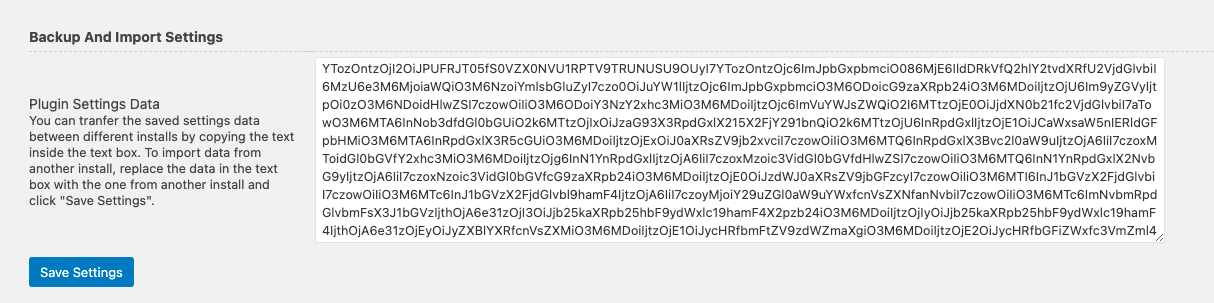
The Backup and Import Settings section in Advanced Settings allows you to export your entire plugin configuration as an encoded data string and import it into any other WordPress installation. This is particularly useful in the following real-world scenarios:
- Migrating to a new store — When moving your WooCommerce setup to a new domain or server, you can carry over all your custom checkout field configurations without having to recreate them manually.
- Duplicating a setup across multiple stores — If you manage several WooCommerce stores that share the same checkout field structure, export once and import across all stores in seconds.
- Troubleshooting safely — Before making significant changes to your field configuration or testing new settings, export a backup of your current setup. If something breaks, you can restore it instantly by reimporting the saved data.
How to Export (Backup) Your Settings
- Go to WooCommerce → Checkout Form → Advanced Settings → General
- Click Backup and Import tab.
- The Plugin Settings Data text box displays your current configuration as an encoded data string.
- Select all the text in the box and copy it.
- Save it somewhere safe — a text file, a notes app, or a version control system.

How to Import Settings
- Go to WooCommerce → Checkout Form → Advanced Settings on the destination install.
- Click Backup and Import tab.
- Clear the existing content in the Plugin Settings Data text box.
- Paste the exported data string from your source install.
- Click Save Settings.
Your checkout field configuration will now mirror the source install exactly.
Note: Always take a backup of your current settings before making major changes or starting a troubleshooting session. This ensures you can roll back to a working state at any point without losing your configuration.
Getting Started
Block Checkout Field Editor
Advanced Settings
For Developers
Compatible Plugin & Themes
Frequently Asked Questions
How