 Getting Started
 For Developers
 Compatible Plugin & Themes
The general settings in the Job manager & career plugin focus on managing the appearance and color so that you can align it with your website.
Appearance
Navigate to Job Listings > Settings > General.
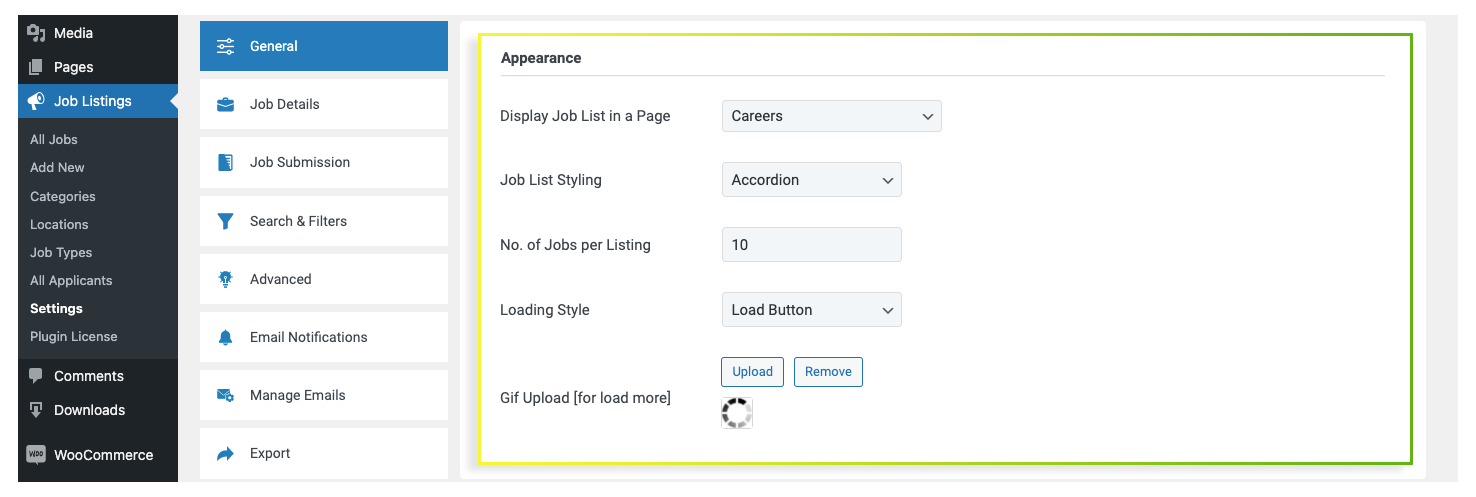
- Display Job List in a page: Click on the corresponding dropdown and choose the page where the careers page should be displayed.
- Job List Styling: Apart from the normal list layout, the job manager provides an accordion layout. By clicking on the drop-down arrow, you can select the style that you prefer.
- No. of Jobs per Listing: Write the number of job posts to be shown on a single page.
- Loading Style: The WordPress career plugin offers two types of loading style. Click on the drop-down arrow to choose one among them.
- Gif Upload: To set a GIf for the load more. By clicking the Upload button, you can upload a GIF of your choice. There will be already a default GIF in for the plugin. You can delete it by clicking the Remove button.
Color Theme
This field allows you to customize the color pattern of the career page.
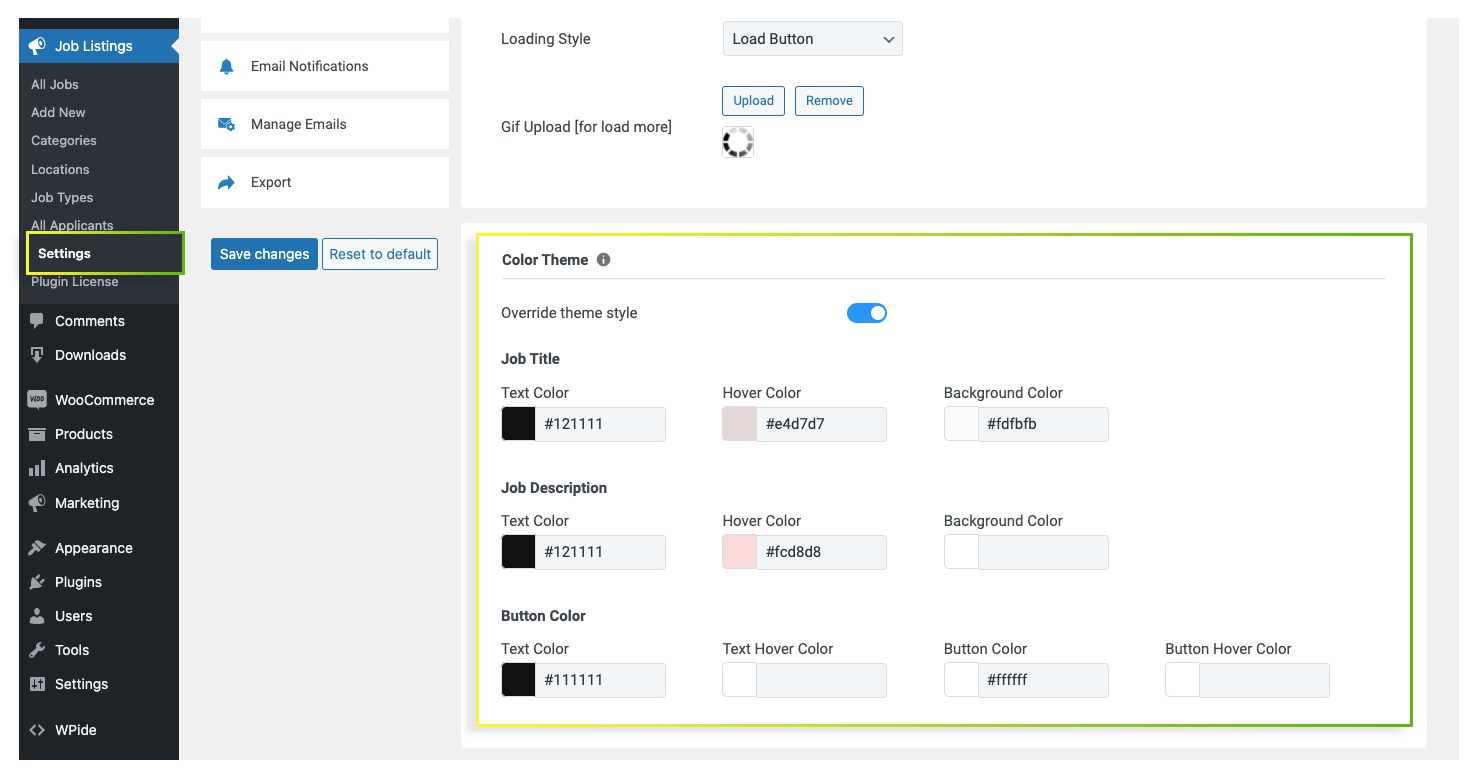
- By enabling the Override theme style, you can start customizing the page.
- It is divided into JOB TITLE, JOB DESCRIPTION, and BUTTON COLOR. You change the text color, background color, text hover color, and even button color by choosing the appropriate one.
Reset to default
It includes the reset to default button, using which you can undo all the changes within a single click.
When the editing is completed click on the Save changes button to save the changes made.