 Getting Started
 Compatible Plugin & Themes
 FAQ
FAQ- Navigate to Products → Attributes.
- Here, you can view the available attributes already created.
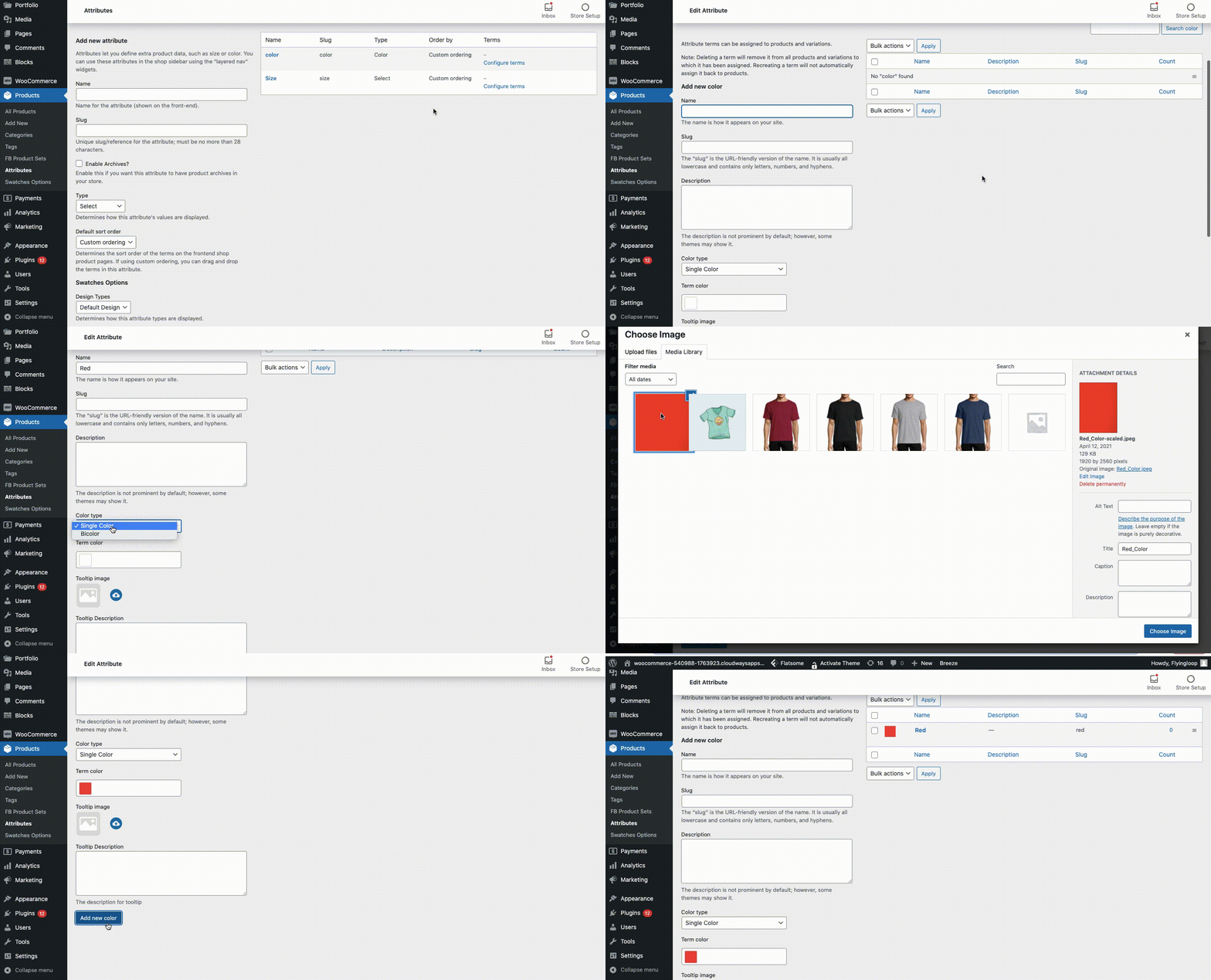
- Select Configure Terms from the newly created attribute to create variations of the attribute.
For a term, you have the following fields to update/edit:
|
- Tooltip Image and Term Image can be uploaded by clicking on the upload icon corresponding to the field. You can choose both the images from the media library or else select the image from your system.
- Provide the description for the tooltip on the Tooltip Description textbox.
- Once you provide the related data, click on the Add New Term button.
Note: Based on the attribute type the term data to be entered will differ.
- If the Swatch type is Image, Term Image can be uploaded by clicking on the Upload button.
- For the swatch type Color, choose the Term Color type (Single Color/Bicolor) from the drop-down. Term color can be set by picking the color from Color Picker or by manually entering the color code.
- Similarly, while the attribute type is Label, Term Label text must be entered.
- For the Radio attribute, the swatch displayed will be the term name along with the radio button.
Add Bicolor for a Color Swatch Term
Steps to add bicolor for a term of color swatch type,
- Go to Products → Attributes.
- Add/ Edit a Term for Color swatch type.
- By default, the Color type will be Single Color. In order to change it to bi-color, Choose the option Bi-color from the Color type drop-down.
- Choose the term colors from the two Color pickers available.
- Update the changes.