
ThemeHigh
  • Plugins
  • Documentation
  • Support
  • Partners
  • Login
  • Getting Started
    • Overview...
    • Add/Edit Custom Sections
    • Add/Edit Custom Fields
    • Add Display Styles
    • Set Tooltip Details
    • Price Fields & Types
    • Set Display Rules for Fields & Sections
    • How to Export/Import Fields & Sections Individually
  • Advanced Settings
    • Add Price Table
    • How to modify add to cart button text?
    • Add a Custom Validation Rule
    • Add a Confirm Field Validator
    • Choose a Layout Style
    • Disable "Enhanced Select(Select 2)" for select fields
    • How to post extra options as URL Parameters?
    • Use the Div tag for displaying fields
    • Backup & Import Settings
    • WPML String Translations...
  • FAQ
    • Frequently Asked Questions...
  • For Developers
    • Hooks & References...
  • Compatible Plugin & Themes
    • Plugins & Themes...

Documentation/Extra Product Option for WooCommerce/How to Add a Price Table on WooCommerce Product Page?

How to Add a Price Table on WooCommerce Product Page?

Last updated on August 30, 2023

Extra Product Options plugin lets you display the price details of each product on the product page.
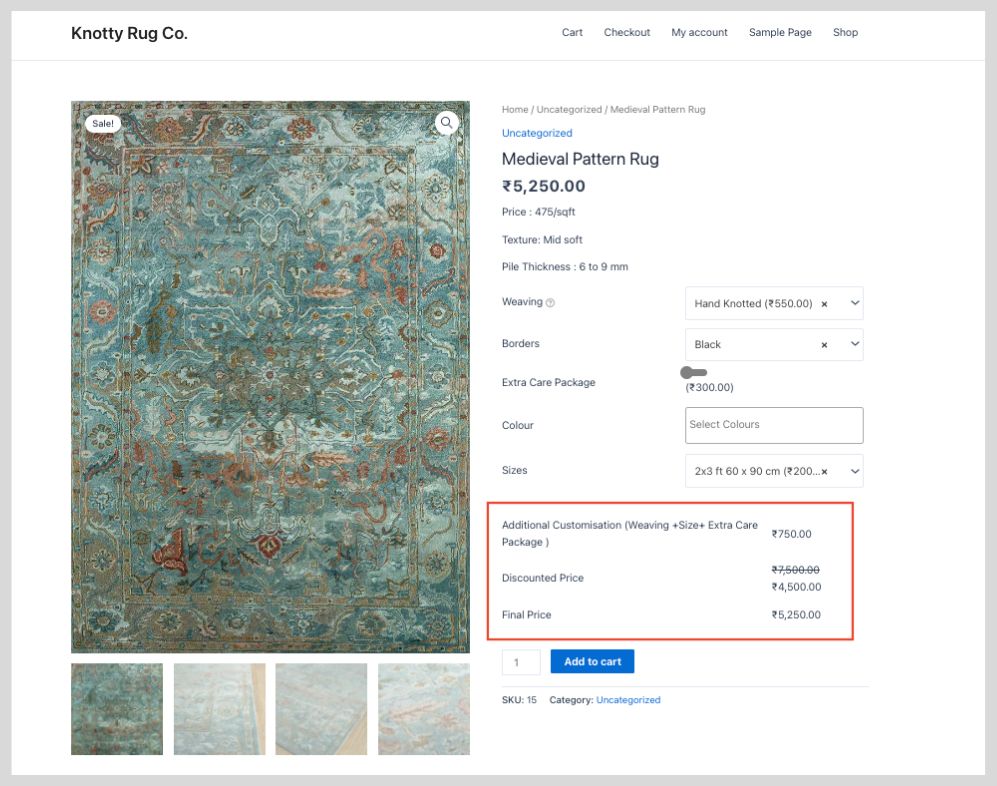
The details will be displayed in a table format with the price details like Extra price, Product price, and Total price of the product. From the Advanced Settings of the plugin, you can change the label of the price table text.

For that,

  1. Navigate to the Extra Product Options > Advanced Settings > Price Table.
  2. Change the label of the price detail from the corresponding textboxes.
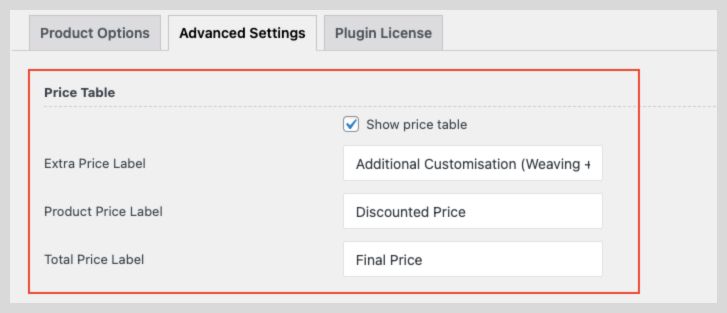
  3. Once the changes are completed, click on the Save changes button.
Extra Price Label To modify the label of the price added using Extra Product Options.
Product Price Label To modify the label of the product price.
Total Price Label To modify the label of the total price for the product.
Show price table Enable the checkbox to display the price table on the product page.

Do note that in order to display the price table inside the product page, you have to enable it via a checkbox that says  “Show price table” from the Advance setting tab.

Quick Links

  • Try Demo
  • How to Download and Install Our Plugin ?
  • Manage License
  • Join our Facebook Community

This article posted in Advanced Settings, Extra Product Option for WooCommerce, Pro Documentation

Leave a Reply Cancel reply

Your email address will not be published. Required fields are marked *

ThemeHigh

We develop innovative WordPress plugins and themes for e-commerce and other WordPress websites.

Resources
  • Documentation
  • Support
  • Blog
  • Bestsellers
  • Affiliates
  • Partners
Policy Information
  • Terms & Conditions
  • Privacy Policy
  • Support Policy
  • Refunds Policy
  • Licenses
Security
Payment Options

© 2026 ThemeHigh. All rights reserved.

Terms and conditions, features, support, pricing, and service options subject to change without notice.